WooCommerce REST API
WooCommerce (WC) 2.6+ is fully integrated with the WordPress REST API. This allows WC data to be created, read, updated, and deleted using requests in JSON format and using WordPress REST API Authentication methods and standard HTTP verbs which are understood by most HTTP clients.
The current WP REST API integration version is v3 which takes a first-order position in endpoints.
When WooPayments is active, it adds payment-specific endpoints under /wp-json/wc/v3/payments/. See the WooPayments REST API reference for transactions, authorizations, and payouts. Some monetary fields in these endpoints use integer minor units, unlike WooCommerce core's decimal-string values.
Requirements
To use the REST API you must be using:
- WooCommerce 3.5+
- WordPress 4.4+
- Pretty permalinks in Settings > Permalinks (default permalinks will not work)
You may access the API over either HTTP or HTTPS, but HTTPS is recommended where possible.
You are not required to install the WP REST API (WP API) plugin.
If you use ModSecurity and see 501 Method Not Implemented errors, see this issue for details.
Libraries and tools
Official libraries
- JavaScript Library
- PHP Library
- Python Library
- Ruby Library
- JavaScript
- PHP
- Python
- Ruby
// Install:
// npm install --save @woocommerce/woocommerce-rest-api

// Setup:
const WooCommerceRestApi = require("@woocommerce/woocommerce-rest-api").default;
// import WooCommerceRestApi from "@woocommerce/woocommerce-rest-api"; // Supports ESM

const WooCommerce = new WooCommerceRestApi({
  url: 'http://example.com', // Your store URL
  consumerKey: 'consumer_key', // Your consumer key
  consumerSecret: 'consumer_secret', // Your consumer secret
  version: 'wc/v3' // WooCommerce WP REST API version
});
<?php
// Install:
// composer require automattic/woocommerce

// Setup:
require __DIR__ . '/vendor/autoload.php';

use Automattic\WooCommerce\Client;

$woocommerce = new Client(
    'http://example.com', // Your store URL
    'consumer_key', // Your consumer key
    'consumer_secret', // Your consumer secret
    [
        'wp_api' => true, // Enable the WP REST API integration
        'version' => 'wc/v3' // WooCommerce WP REST API version
    ]
);
?>
# Install:
# pip install woocommerce

# Setup:
from woocommerce import API

wcapi = API(
    url="http://example.com", # Your store URL
    consumer_key="consumer_key", # Your consumer key
    consumer_secret="consumer_secret", # Your consumer secret
    wp_api=True, # Enable the WP REST API integration
    version="wc/v3" # WooCommerce WP REST API version
)
# Install:
# gem install woocommerce_api

# Setup:
require "woocommerce_api"

woocommerce = WooCommerce::API.new(
  "https://example.com", # Your store URL
  "consumer_key", # Your consumer key
  "consumer_secret", # Your consumer secret
  {
    wp_api: true, # Enable the WP REST API integration
    version: "wc/v3" # WooCommerce WP REST API version
  }
)
Third party libraries
We don't offer support for third party libraries. If you have questions about how to use any of these libraries, contact the respective authors.
Tools
- Insomnia - Cross-platform GraphQL and REST client, available for Mac, Windows, and Linux.
- Postman - Cross-platform REST client, available for Mac, Windows, and Linux.
- RequestBin - Allows you test webhooks.
- Hookbin - Another tool to test webhooks.
Generate keys
To start using REST API, you first need to generate API keys.
- Go to WooCommerce > Settings > Advanced
- Go to the REST API tab and click Add key
- Give the key a description for your own reference, choose a user with access to orders etc, and give the key read/write permissions
- Click Generate API key
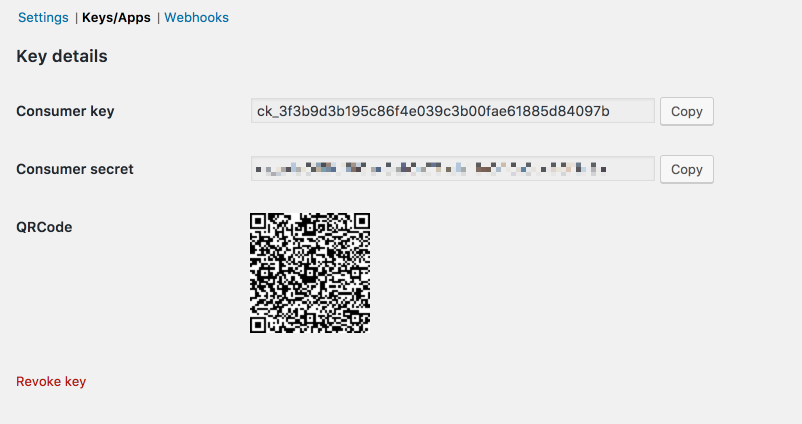
- Your keys will be shown - do not close this tab yet, the secret will be hidden if you try to view the key again
Make a basic request
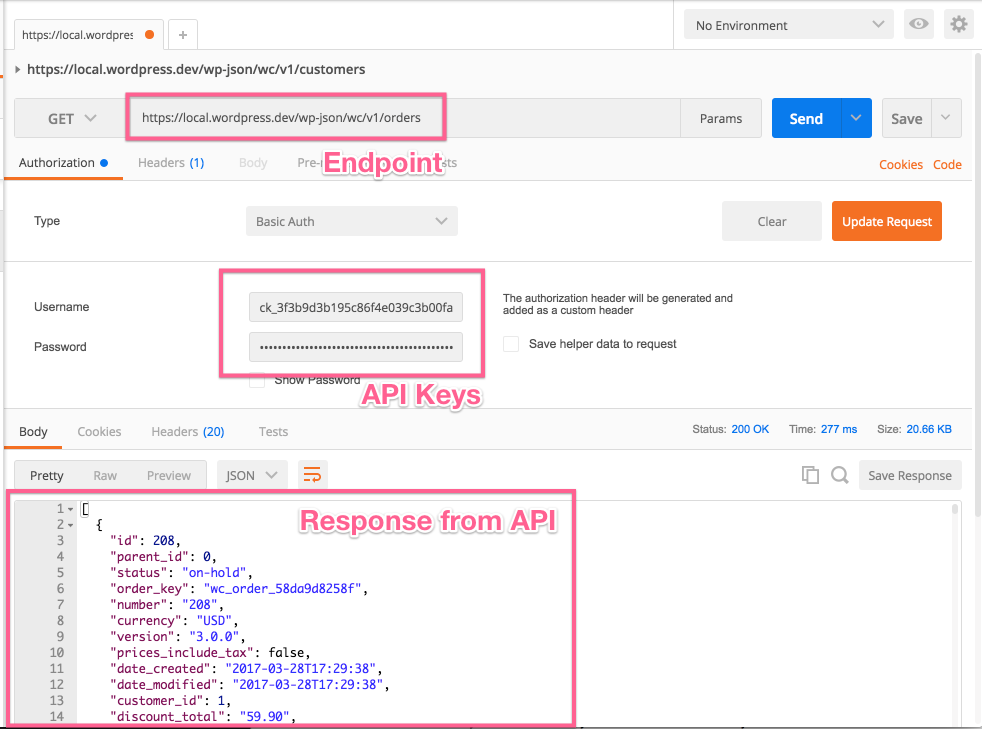
The request URL we'll test is wp-json/wc/v3/orders. On localhost the full URL may look something like this: https://localhost:8888/wp-json/wc/v3/orders. Modify this to use your own site URL.
In Postman, you need to set the fields for request type, request URL, and the settings on the authorization tab. For Authorization, choose basic auth and enter your consumer key and consumer secret keys from WooCommerce into the username and password fields.
Once done, hit send and you'll see the JSON response from the API if all worked well:
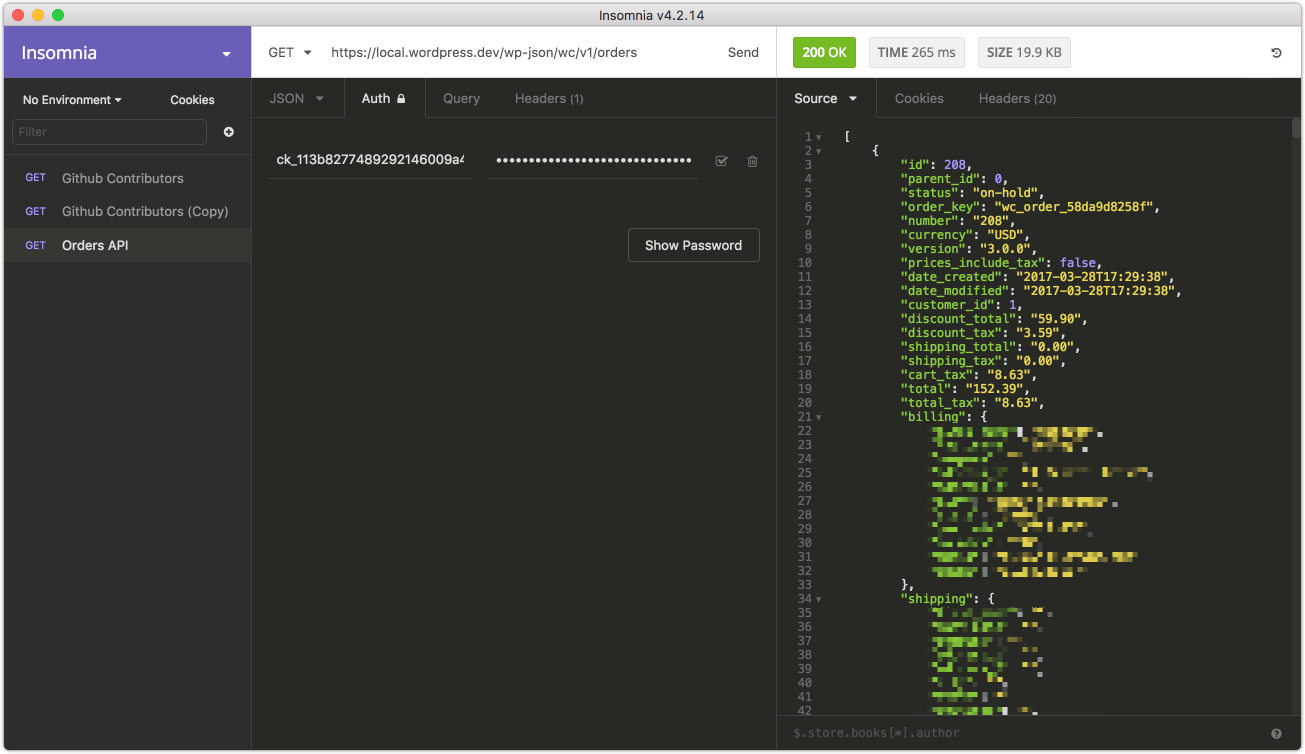
Insomnia is almost identical to Postman; fill in the same fields and again use basic auth:
Request/Response format
The default response format is JSON. Requests with a message-body use plain JSON to set or update resource attributes. Successful requests will return a 200 OK HTTP status.
Some general information about responses:
- Dates are returned in ISO8601 format:
YYYY-MM-DDTHH:MM:SS - Resource IDs are returned as integers
- Any decimal monetary amount, such as prices or totals, will be returned as strings with two decimal places
- Other amounts, such as item counts, are returned as integers
- Blank fields are generally included as
nullor empty string instead of being omitted
JSONP support
The WP REST API supports JSONP by default. JSONP responses use the application/javascript content-type. You can specify the callback using the ?_jsonp parameter for GET requests to have the response wrapped in a JSON function:
GET /wp-json/wc/v3?_jsonp=callback
Parameters
Almost all endpoints accept optional parameters which can be passed as a HTTP query string parameter, e.g. GET /orders?status=completed. All parameters are documented along each endpoint.
Pagination
Requests that return multiple items will be paginated to 10 items by default. This default can be changed by the site administrator by changing the posts_per_page option. Alternatively the items per page can be specified with the ?per_page parameter:
GET /orders?per_page=15
You can specify further pages with the ?page parameter:
GET /orders?page=2
You may also specify the offset from the first resource using the ?offset parameter:
GET /orders?offset=5
Page number is 1-based and omitting the ?page parameter will return the first page.
The total number of resources and pages are always included in the X-WP-Total and X-WP-TotalPages HTTP headers.
Link header
Pagination info is included in the Link Header. It's recommended that you follow these values instead of building your own URLs where possible.
Link: <https://www.example.com/wp-json/wc/v3/products?page=2>; rel="next",
<https://www.example.com/wp-json/wc/v3/products?page=3>; rel="last"
| Value | Description |
|---|---|
next | Shows the URL of the immediate next page of results. |
last | Shows the URL of the last page of results. |
first | Shows the URL of the first page of results. |
prev | Shows the URL of the immediate previous page of results. |
Errors
Occasionally you might encounter errors when accessing the REST API. There are four possible types:
| Error Code | Error Type |
|---|---|
400 Bad Request | Invalid request, e.g. using an unsupported HTTP method |
401 Unauthorized | Authentication or permission error, e.g. incorrect API keys |
404 Not Found | Requests to resources that don't exist or are missing |
500 Internal Server Error | Server error |
Errors return both an appropriate HTTP status code and response object which contains a code, message and data attribute:
{
  "code": "woocommerce_rest_term_invalid",
  "message": "Resource doesn't exist.",
  "data": {
    "status": 404
  }
}
Common connection issues
Connection issues with localhost and self-signed SSL certificates
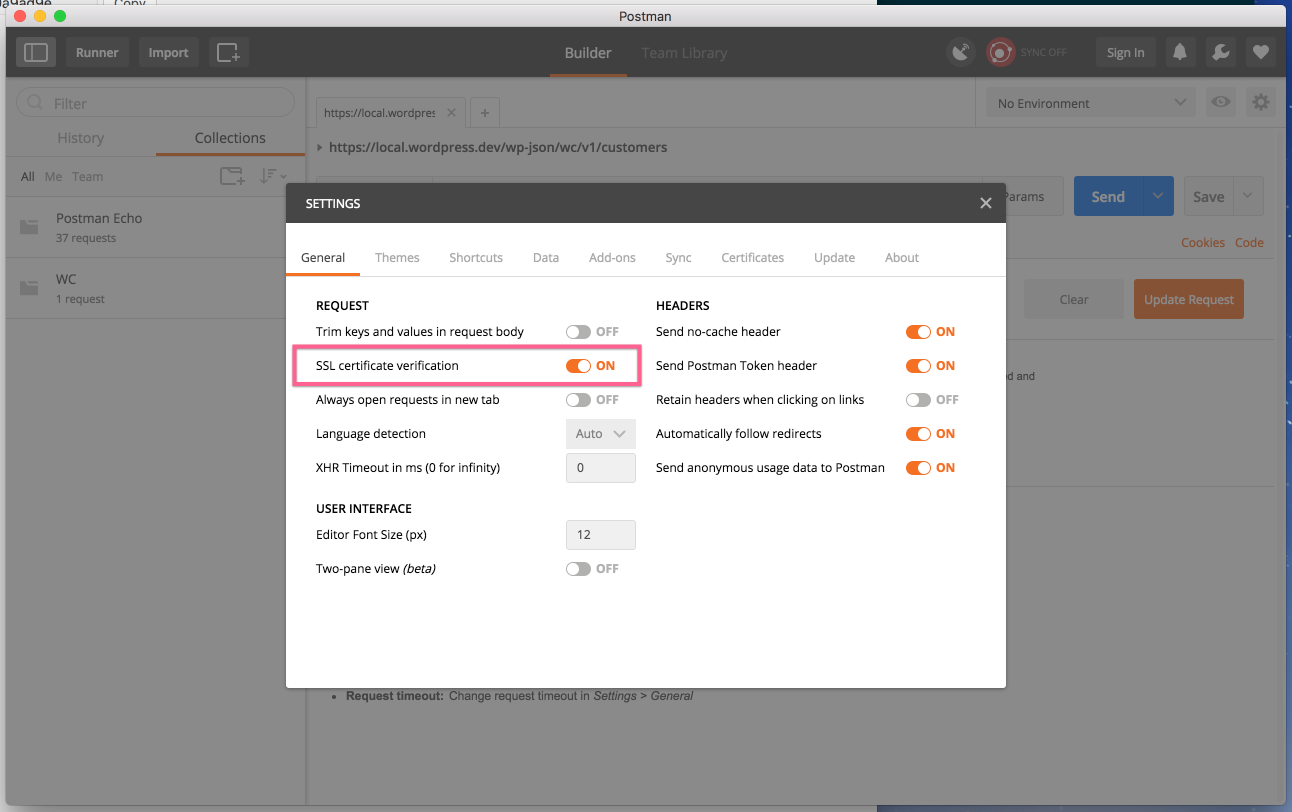
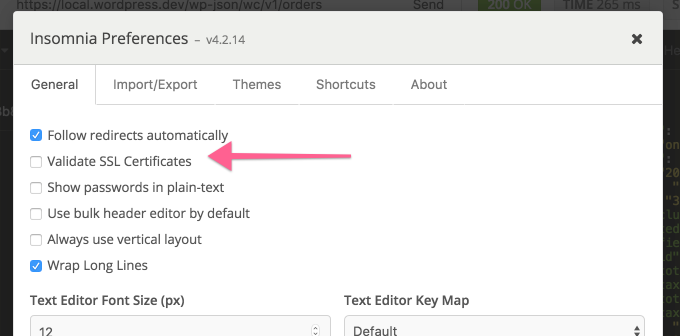
If you're having problems connecting to the REST API on your localhost and seeing SSL errors, you need to disable SSL verification.
In Postman you can find this in the settings:
Insomnia also has this setting in the preferences area:
401 Unauthorized
Your API keys or signature is wrong. Ensure that:
- The user you generated API keys for actually has access to those resources
- The username when authenticating is your consumer key
- The password when authenticating is your consumer secret
- Make a new set of keys to be sure
If your server utilizes FastCGI, check that your authorization headers are properly read.
Consumer key is missing
Occasionally servers may not parse the Authorization header correctly (if you see a "Consumer key is missing" error when authenticating over SSL, you have a server issue).
In this case, you may provide the consumer key/secret as query string parameters instead:
https://local.wordpress.dev/wp-json/wc/v2/orders?consumer_key=XXXX&consumer_secret=XXXX
Server does not support POST/DELETE/PUT
Ideally, your server should be configured to accept these types of API request, but if not you can use the _method property.
API version history
| API Version | WC Version | WP Version |
|---|---|---|
v3 | 3.5.x or later | 4.4 or later |
v2 | 3.0.x or later | 4.4 or later |
v1 | 2.6.x or later | 4.4 or later |
Learn more
Learn more about the REST API checking the official WordPress REST API documentation.